






Fortnite Chapter 6: Boost FPS With PC Settings
While Fortnite's chaotic gameplay is challenging enough, poor framerates can make it downright unplayable. Fortunately, most performance issues can be resolved by optimizing your settings. Here's a comprehensive guide to the best PC settings for Fortnite.
Fortnite Display Settings Optimization
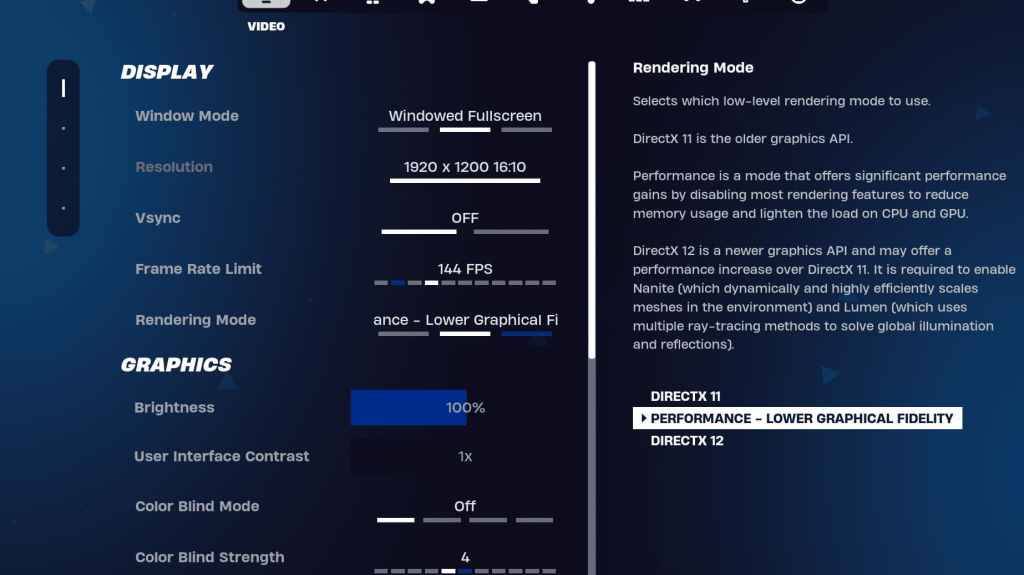
Fortnite's video settings are divided into Display and Graphics sections, both critical for performance. These recommended display settings will give you the best balance between visual quality and frame rates:
| Setting | Recommended Configuration |
| Window Mode | Fullscreen (best performance) or Windowed Fullscreen (if frequently alt-tabbing) |
| Resolution | Native monitor resolution (typically 1920×1080). Lower if using very low-end hardware. |
| V-sync | Disabled (reduces input lag significantly) |
| Framerate Limit | Match your monitor's refresh rate (e.g., 144Hz, 240Hz) |
| Rendering Mode | Performance (maximum FPS) or DX11/DX12 for better visuals |
Understanding Rendering Mode Options
Fortnite offers three rendering modes with distinct advantages:
Performance Mode delivers maximum frame rates with reduced visuals, preferred by competitive players. DirectX 11 provides stability and consistent performance, while DirectX 12 offers visual enhancements and better performance on modern systems.
Fortnite Graphics Configuration Guide
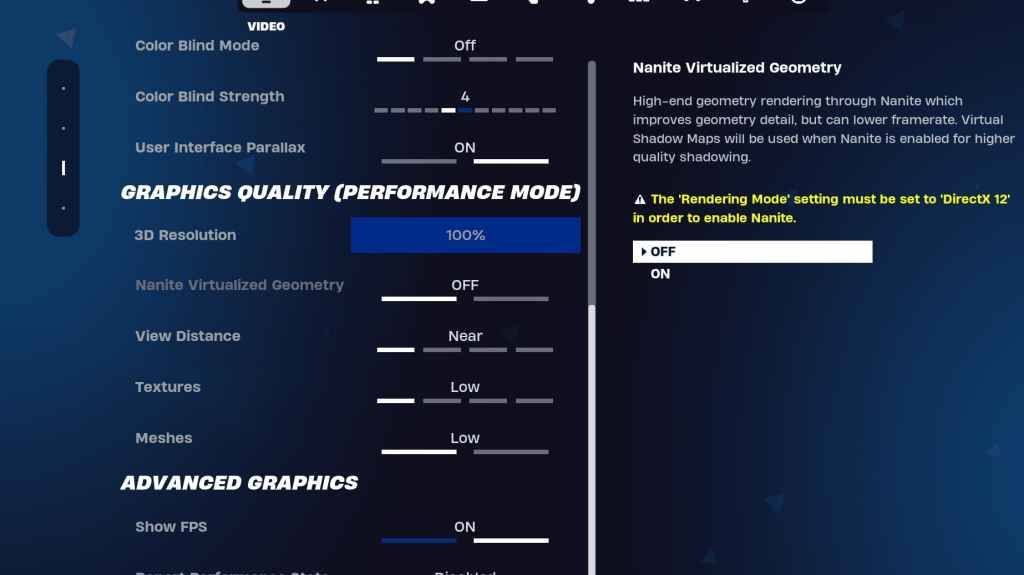
The graphics settings significantly impact performance. These optimized configurations will ensure smooth gameplay without sacrificing too much visual quality:
| Setting | Recommended |
| Quality Preset | Low |
| 3D Resolution | 100% (70-80% for low-end PCs) |
| Shadows/Reflections | Disabled for maximum performance |
| View Distance | Epic (critical for competitive play) |
| Textures/Effects | Low |
| Nvidia Low Latency | On+Boost (Nvidia GPUs only) |
Gameplay Settings That Matter
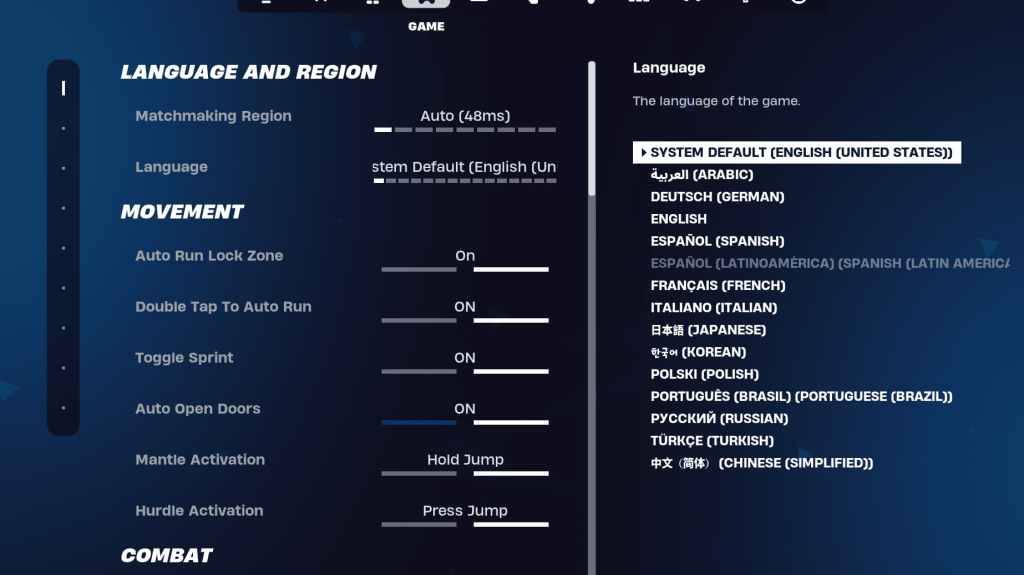
These game settings enhance your competitive edge without affecting frame rates:
Essential Movement Settings
Enable Auto Open Doors and Double Tap to Auto Run (controller) for improved mobility.
Combat Optimization
Activate Hold to Swap Pickup and Auto Pickup Weapons for faster looting.
Building & Editing Preferences
Configure these based on your playstyle:
• Reset Building Choice: Off
• Turbo Building: Off (reduces misinputs)
• Simple Edit: Optional for beginners
Audio Configuration For Competitive Advantage
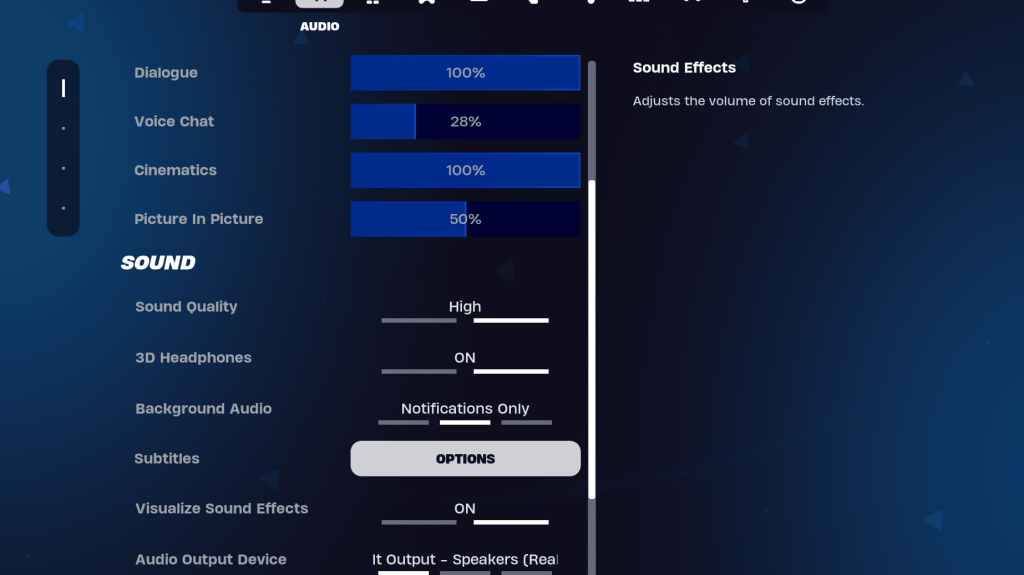
Enable 3D Headphones for spatial awareness and Visualize Sound Effects for critical audio cues. Test these with your specific headphones as results may vary.
Keyboard & Mouse Customization
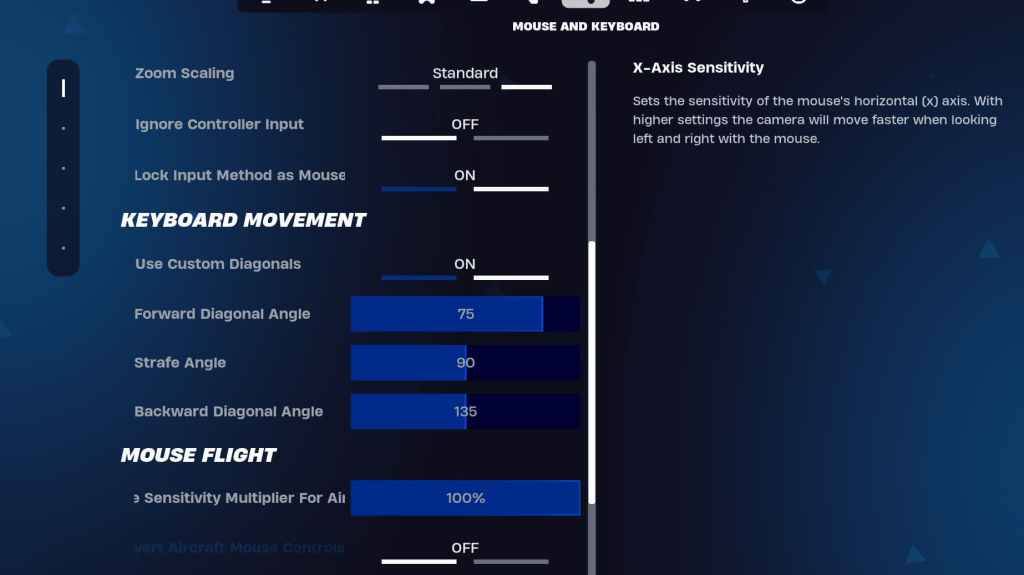
Fine-tune these sensitivity settings for optimal control:
Targeting/Scope Sensitivity: 45-60%
Building Sensitivity: Personal preference
Custom Diagonals: Enabled with recommended angles
Keybinds should be customized to match your playstyle and comfort.
-
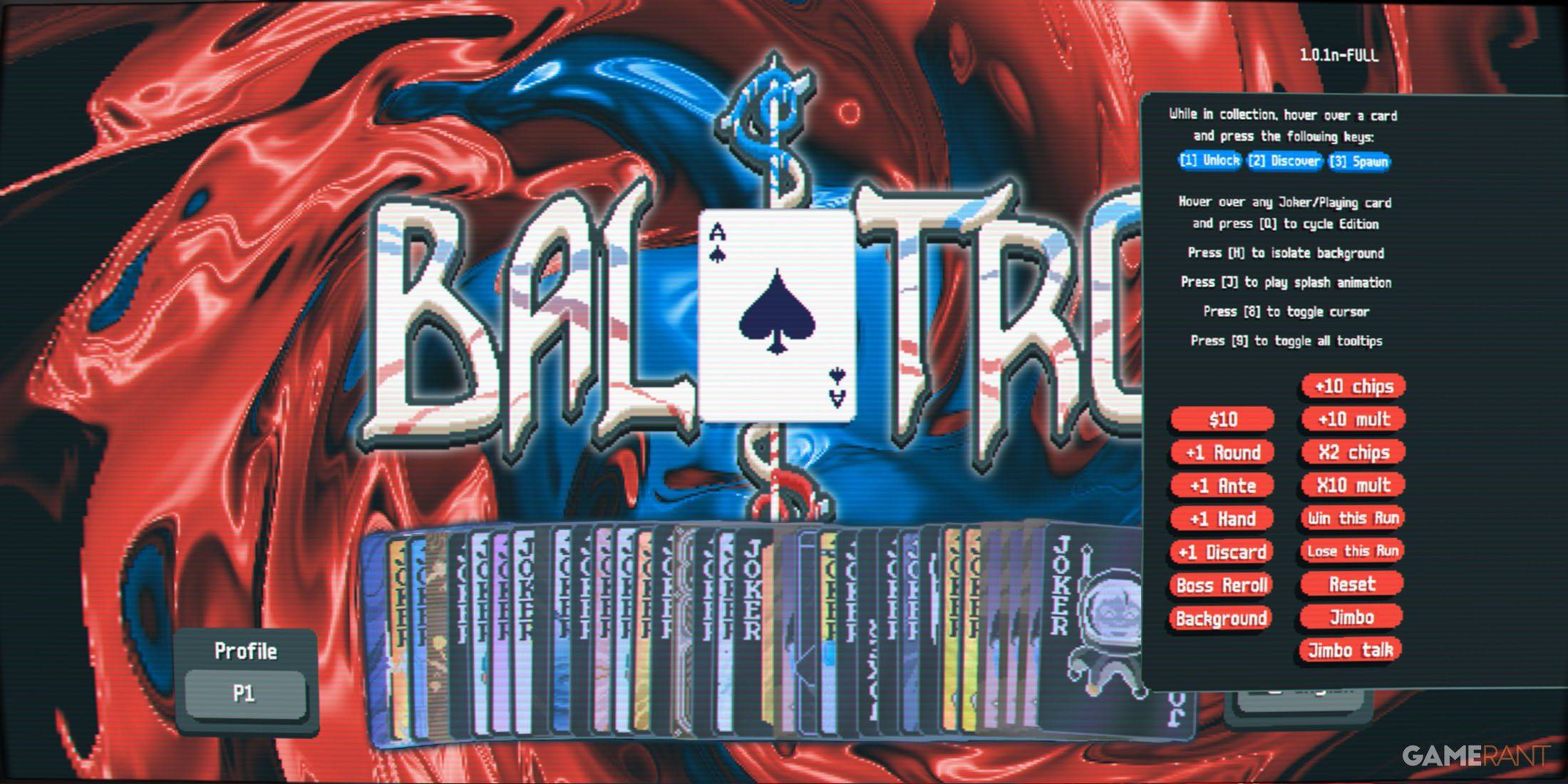 Apr 05,25Balatro Cheats: Accessing the Debug Menu Guide Balatro took the gaming world by storm upon its release in early 2024, selling over 3.5 million copies and clinching three out of five nominations at the 2024 Game Awards. Its innovative gameplay and endless replayability have kept it a favorite among players. As players become more adept at its mec
 -
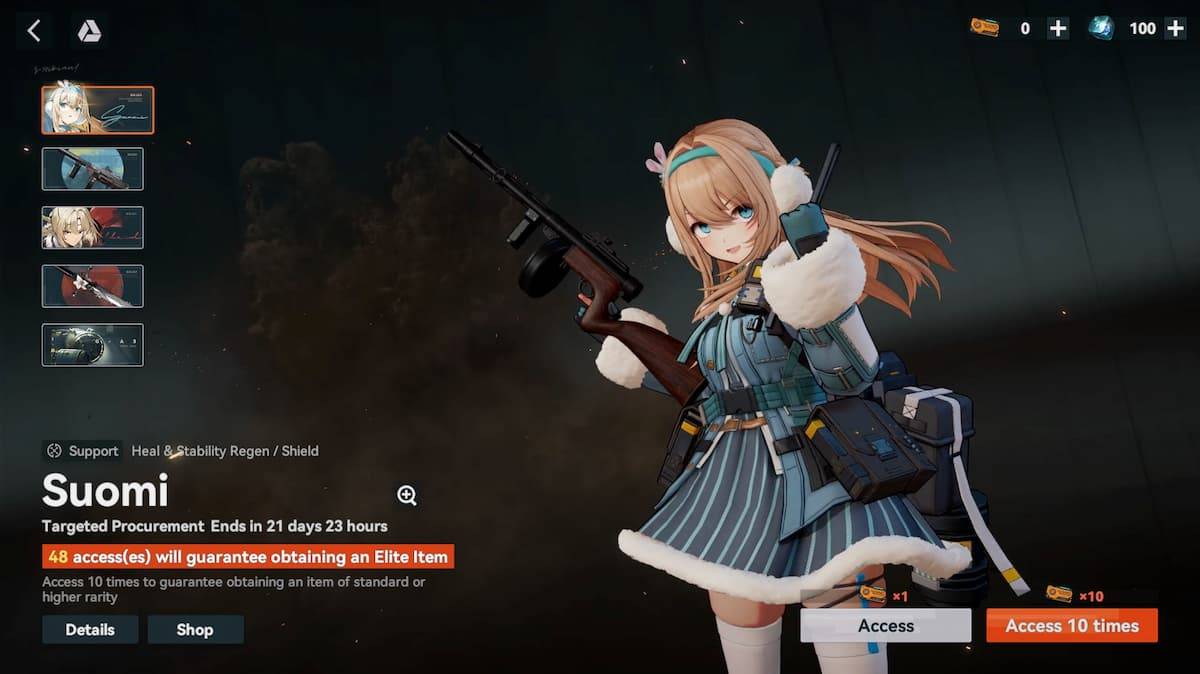 Jan 16,25Girls' Frontline 2: Exilium Tier List Released Another free-to-play gacha game, another character ranking to guide your investment choices. This Girls’ Frontline 2: Exilium character tier list helps you prioritize which characters are worth your resources. Girls’ Frontline 2: Exilium Character Tier List Here's a breakdown of currently available
 -
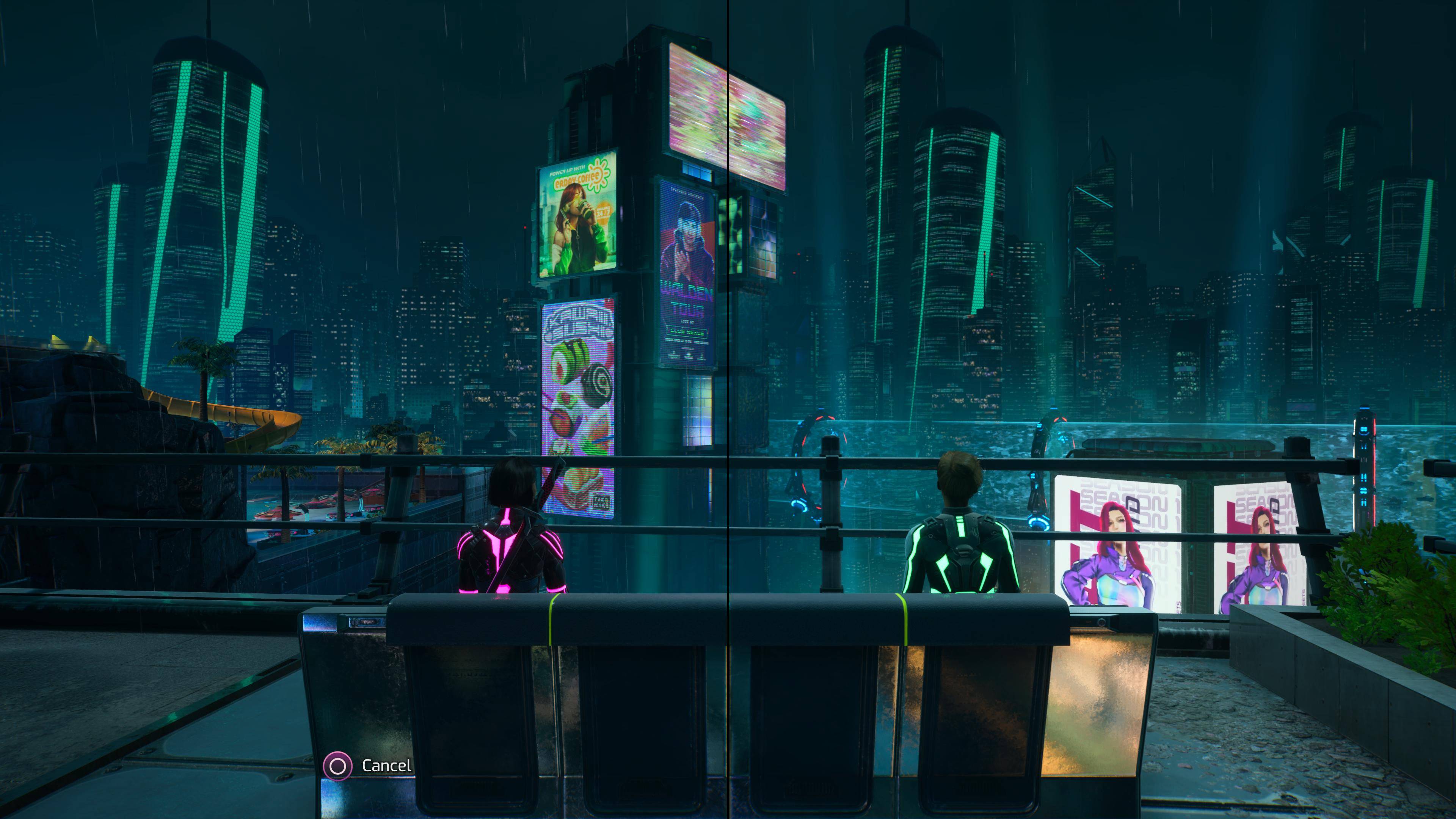 Mar 17,25All Split Fiction Achievements & How to Unlock Them Dive into the captivating co-op adventure Split Fiction from Hazelight Studios! This guide outlines every achievement, ensuring you and your partner conquer every challenge. While some trophies are earned naturally through the story, many require thorough exploration and unique actions. Use this g
 -
 Mar 19,25How Does Dragon Ball Daima’s Finale Explain Goku Never Using Super Saiyan 4 in Super? The climactic battle in Dragon Ball Daima's finale pits Gomah against Goku, showcasing Goku's newly acquired form. This episode naturally led many fans to anticipate an explanation for Super Saiyan 4's absence in Super. So, how does the finale address this?In episode 19, after Glorio's wish restore